Windows settings to change after a reformat
With the programs installed, this is what remains. These are the defaults that become a problem — or a risk — if you leave them alone.
Last updated
Contents
Show file extensions — do this first
Default — extensions hidden

After turning extensions on

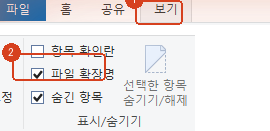
Windows hides file extensions by default. That means an executable named `photo.jpg.exe` appears on screen as `photo.jpg`. Disguising a malicious file as a picture or a document is the most common trick there is, and it targets exactly this default. File Explorer → View → Show → File name extensions. One setting closes the hole.
File Explorer
- Show hidden items
- The AppData folder holding program settings is hidden by default. You need it when moving settings across or diagnosing a problem. View → Show → Hidden items.
- Open to "This PC"
- Explorer opens to "Home" by default. If you prefer seeing your drives, change Folder Options → General → Open File Explorer to → This PC.
- Pin your working folders
- Pinning the folders you use to Quick access saves walking the same path every time.
Power and startup
- Turn off Fast Startup
- Control Panel → Power Options → Choose what the power buttons do → uncheck Turn on fast start-up. The feature saves system state on shutdown, which is why problems that "go away when you restart" survive a shutdown. If you dual-boot or updates keep deferring, turn it off.
- Power mode
- Balanced suits laptops. On a desktop used for gaming or video work, Best performance keeps clocks from dropping.
- Sleep timers
- The default is short enough that the screen sleeps mid-download and interrupts transfers. Settings → System → Power.
Turn on System Restore
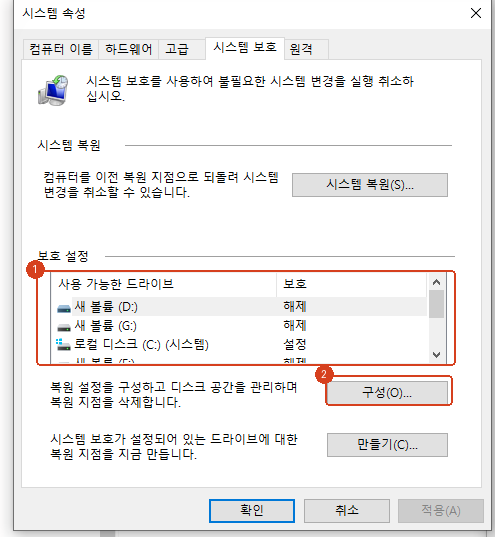
It is off by default. It is the only mechanism for rolling back after a driver or program breaks something — and with it off, there are no restore points to roll back to. Search the Start menu for "Create a restore point" → select the C: drive → Configure → Turn on system protection. Around 5% of disk space is plenty.
Storage
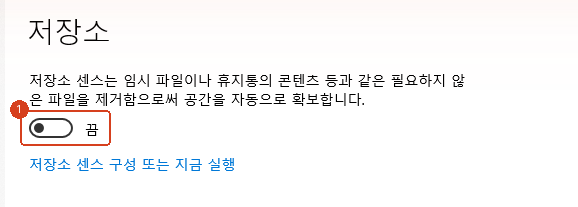
- Storage Sense
- Settings → System → Storage. It empties temporary files and the recycle bin periodically. Do check the "delete files in Downloads" option, though — files you saved can quietly disappear.
- Send large programs elsewhere
- Game launchers and AI models take tens of gigabytes. When an installer asks where to go, pointing it at another drive keeps C: alive far longer.
- Clean up previous Windows
- After an upgrade, windows.old occupies 20–30GB. Remove it from Storage → Temporary files.
Set up backup now
Right after a reformat is the best moment to configure backup — once files pile up, it gets postponed indefinitely. With an external drive, turn on File History from Settings → System → Storage → Advanced storage settings → Backup options. Without one, OneDrive folder backup covering at least Desktop, Documents and Pictures is better than nothing.
Privacy and advertising
- Settings → Privacy & security → General: turning off the advertising ID reduces cross-app ad tracking.
- Under Diagnostics & feedback, switch off optional diagnostic data. Required data cannot be disabled.
- Location can be off if you do not use maps or weather.
- Settings → Personalisation → Start: turning off recommendations removes suggested apps from the Start menu.
If text looks blurry or too small
Check scaling in Settings → System → Display. On a high-resolution monitor, 100% makes text uncomfortably small. If a particular program still looks blurry after changing scale, adjust it in that program’s Properties → Compatibility → Change high DPI settings. Running the ClearType tuner once, from the Start menu, also helps.
Common questions
Why turn off Fast Startup?
Because it behaves closer to hibernation than a true shutdown. Changes that require a restart do not take effect, and in dual-boot setups the other OS can fail to read the disk cleanly. Booting is slightly slower but predictable.
Does System Restore use much space?
Only what you allocate. Around 5% holds several recent restore points, and older ones are removed automatically. Cheap compared with being able to undo a bad install.
Does Storage Sense delete my files?
It targets temporary files, the recycle bin, and Downloads items older than a period you set. Documents and photos are untouched. Just check that Downloads setting.
Do optimisation tools make it faster?
The claim that cleaning the registry speeds things up has little basis on modern Windows. What you can feel is trimming startup programs and moving to an SSD.
Should I run only one antivirus?
Yes. Two products treat each other’s scanning as suspicious activity, which slows the machine and raises false positives. Defender, included with Windows, is enough for ordinary use.
Still need to pick your programs?
Choose the ones you used and we build the installer files.
Choose programs